
What Is DCR on a Monitor? Ultimate Guide to Dynamic Contrast Ratio
2025-09-16
What Is DCR on a Monitor? Ultimate Guide to Dynamic Contrast Ratio
If you’ve ever scanned monitor specs or tweaked display settings, you’ve likely stumbled on “DCR” and asked: “what is DCR on a monitor?” Whether you use your monitor for work, gaming, or streaming, understanding DCR isn’t just about decoding jargon—it’s about unlocking your display’s best performance. This guide answers every question you have about DCR: from how it works to whether it’s worth enabling, and how it stacks up against HDR. We even include step-by-step tips to adjust DCR for your needs.
Table of Contents
To start with the basics: DCR stands for Dynamic Contrast Ratio—a feature designed to boost the gap between the darkest and brightest parts of an image. When you ask “what is DCR on a monitor,” the simplest answer is: it’s a tool that makes your display adapt to content, rather than staying fixed at one contrast level.
Unlike “static contrast ratio” (a fixed spec, e.g., 1000:1, that measures a monitor’s maximum contrast in a single frame), DCR adjusts in real time. For example:
- Watching a night scene in a movie? DCR deepens shadows to make black areas look “truer” and brightens highlights (like a streetlamp) to avoid washout.
- Browsing a webpage with white text on a dark background? DCR softens harsh contrasts to reduce eye strain.
Crucially, DCR’s effectiveness depends on your monitor’s hardware: VA-panel monitors (known for high static contrast) often work better with DCR than IPS or TN panels, since they have a stronger base contrast to build on. This is a key point many guides miss—but it’s essential to understanding if DCR will work for your monitor.
Now that you know the “what,” let’s dive into “how does DCR work on a monitor.” Most monitors use a two-part system—backlight control and pixel tuning—to create dynamic contrast. Here’s a detailed breakdown:
Step 1: Content Analysis (Software)
First, your monitor’s firmware scans incoming content (a video frame, webpage, or game screen) to map bright and dark zones. For example, if you’re playing a game with a bright sky and dark underbrush, the firmware flags these areas separately. This scan happens in milliseconds, so you won’t notice delays in most cases.
Step 2: Backlight Adjustment (Hardware)
Next, the monitor adjusts its backlight—this is the core of DCR:
- Full-backlight dimming: Budget monitors dim the entire backlight for dark scenes (reducing “bloom,” the glow around bright objects in dark areas) and brighten it for light scenes.
- Local dimming: Mid-to-high-end monitors use zoned backlights (e.g., 100+ zones) to dim only the dark parts of the screen. This is more precise—no more dimming the entire screen just because one corner is dark.
Step 3: Pixel Brightness Tuning (Software + Hardware)
Finally, DCR fine-tunes individual pixel brightness to preserve detail. For example:
- In a bright sunset scene, it won’t overexpose clouds (making them look like white blobs).
- In a dark room scene, it won’t “crush” shadows (hiding details like a character’s face in dim light).
This step is why DCR is better than just manually cranking up contrast: it balances brightness and detail, rather than sacrificing one for the other.
The “monitor DCR function” isn’t just a marketing trick—it solves real problems for different users. Here’s how it adds value in common scenarios:
For Media Streaming (Movies/TV/Photos)
DCR makes colors feel more immersive. A nature documentary, for example, will have deeper greens (in forests) and brighter blues (in skies), while a dark thriller will let you see details in shadows (no more pausing to squint at dark scenes). Even casual photo viewing benefits: family photos will have richer skin tones and more vibrant backgrounds.
For Office Work (Docs/Spreadsheets/Web Browsing)
If you work 8+ hours a day on a monitor, DCR reduces eye strain. In a bright office, it boosts brightness to keep text from looking washed out; in a dark home office, it dims harsh highlights (like white webpage backgrounds) to avoid eye fatigue. This is especially helpful for users with sensitive eyes or long workdays.
For Gaming (FPS/RPG/Strategy Games)
Gamers often overlook DCR—but it can improve performance. In FPS games (e.g., CS2), DCR helps spot enemies in dark corners (like a player hiding in a shadowed hallway) without overexposing the rest of the map. In RPGs (e.g., The Legend of Zelda), it makes environments feel more depthful—think brighter torches in dark caves, or richer grass in sunny fields.
Exception: For color-critical tasks (photo editing, graphic design, video grading), the monitor DCR function is not ideal. It distorts colors slightly to boost contrast, which can lead to inaccurate edits (e.g., a photo that looks “right” on your monitor but “off” on other screens).
Many users mix up DCR and HDR—so let’s clarify “DCR vs HDR on monitor” with a side-by-side comparison and real-world use cases:
|
Factor
|
DCR (Dynamic Contrast Ratio)
|
HDR (High Dynamic Range)
|
|
Core Goal
|
Enhance contrast for any content
|
Display wider brightness/colors for HDR-enabled content
|
|
Content Requirement
|
Works with SDR (standard) and HDR content
|
Only works if content is HDR (e.g., HDR movies on Netflix, HDR games on PS5)
|
|
Hardware Needs
|
Basic backlight (most monitors have it)
|
HDR-certified panel, 500nits+ peak brightness, wide color gamut (DCI-P3)
|
|
Color Accuracy
|
May slightly distort colors
|
Preserves accurate colors (when calibrated)
|
|
Cost
|
Built-in (no extra charge)
|
Premium feature (adds \(50–\)200 to monitor price)
|
When to Use DCR vs HDR:
- Use DCR if: You watch SDR content (most TV shows, old movies, webpages) or have a budget monitor without HDR. It’s a quick way to boost contrast without spending money.
- Use HDR if: You stream HDR content (e.g., Disney+ HDR movies) or play HDR games. It delivers cinema-like visuals—but only if your monitor and content support it.
- Never use both: Enabling DCR and HDR together causes “over-contrast”—highlights get blown out, and shadows get crushed. Stick to one at a time.
After learning about DCR, you’re probably asking: “is monitor DCR worth using?” The answer depends on your needs—here’s a balanced breakdown:
Pros of Monitor DCR:
- No Extra Cost: DCR is built into nearly every monitor (even $100 budget models). You don’t need to upgrade your display to use it.
- Easy to Adjust: You can toggle it on/off in 30 seconds (via your monitor’s OSD or PC settings—we cover this later).
- Better Everyday Viewing: For streaming, browsing, or work, it makes images easier on the eyes and more engaging.
- Works With Any Content: Unlike HDR, you don’t need special content—DCR improves SDR media, which is what most people watch.
Cons of Monitor DCR:
- Bad for Color-Critical Work: As mentioned, DCR distorts colors. If you edit photos or design graphics, keep it off.
- Potential Lag on Low-End Monitors: Some cheap monitors have 1–2ms input lag when DCR is enabled. This isn’t noticeable for work, but it can affect fast-paced games (e.g., Valorant). Test it first—if you notice lag, turn it off.
- Over-Contrast on Poorly Calibrated Monitors: Low-quality monitors may “crush” shadows (lose detail) or “blow out” highlights (make bright areas white). If this happens, try lowering DCR to “Medium” (many monitors have preset levels).
Enabling or disabling DCR is simple—here’s how to do it on any monitor (Dell, ASUS, LG, HP, etc.) and Windows/macOS:
Method 1: Use Your Monitor’s OSD (Most Reliable)
- Open the OSD: Press the physical buttons on your monitor (usually on the bottom bezel or side). Look for a “Menu” or “Settings” button.
- Navigate to Display Settings: Select options like “Image,” “Picture,” or “Display” (names vary by brand).
- Find DCR: Look for “DCR,” “Dynamic Contrast,” “Dynamic Ratio,” or “Contrast Plus.”
- Toggle It: Select “On” to enable, “Off” to disable, or a preset (Low/Medium/High) for balanced results.
Method 2: Use Windows/macOS Settings
- Windows: Go to Settings > System > Display > Advanced display > Display adapter properties > Color management. Look for “Dynamic Contrast” (not all GPUs support this—use the OSD method if it’s missing).
- macOS: Go to System Settings > Displays > Advanced > Color. Some monitors show “Dynamic Contrast” here, but most require the OSD method.
To help you make informed decisions, let’s debunk 3 common myths about DCR:
Myth 1: “DCR damages your monitor.”
False. DCR is a software-controlled feature that adjusts backlight and pixel brightness—this doesn’t harm your monitor’s hardware. It’s no more risky than changing brightness or contrast manually.
Myth 2: “DCR is the same as HDR.”
False. As we covered earlier, DCR enhances contrast for any content, while HDR requires special hardware and content. They’re related but not interchangeable.
Myth 3: “All monitors have the same DCR quality.”
False. High-end monitors (e.g., ASUS TUF Gaming monitors) use advanced DCR algorithms that preserve detail, while budget monitors may over-contrast. If your monitor’s DCR looks bad, it’s not DCR itself—it’s the monitor’s quality.
To maximize DCR’s benefits, follow these tips:
- Test It for Your Use Case: Enable DCR for streaming/work, disable it for photo editing/gaming (if you notice lag).
- Start With “Medium” Preset: Most monitors have Low/Medium/High DCR levels—Medium balances contrast and detail best.
- Pair It With Ambient Light: If you’re in a bright room, crank DCR to High to avoid washout; in a dark room, use Low to reduce eye strain.
- Calibrate Your Monitor First: If DCR looks off, calibrate your monitor’s brightness/contrast (use Windows’ “Calibrate display color” tool) before adjusting DCR.
Conclusion
To answer the question “what is DCR on a monitor” one final time: DCR is a built-in feature that boosts contrast by adapting to your content. It’s perfect for everyday use—streaming, work, browsing—and it costs nothing to use. While it’s not ideal for color-critical tasks, it’s a simple way to improve your monitor’s performance without upgrading.
When compared to HDR, DCR is more accessible (works with any content) but less powerful (no wide color gamut). The best approach is to use DCR for SDR content and HDR for HDR media—never both.
By following the steps in this guide, you can adjust DCR to fit your needs and get the most from your monitor. Whether you’re a casual user or a gamer, DCR is a tool that can make your viewing experience brighter, more immersive, and easier on your eyes.
Largest Jumbotron in the World: A Complete Guide to Jumbotrons & LED Screens
What is a Rental LED Screen? Complete Guide to LED Rental Displays in 2025
Related Article

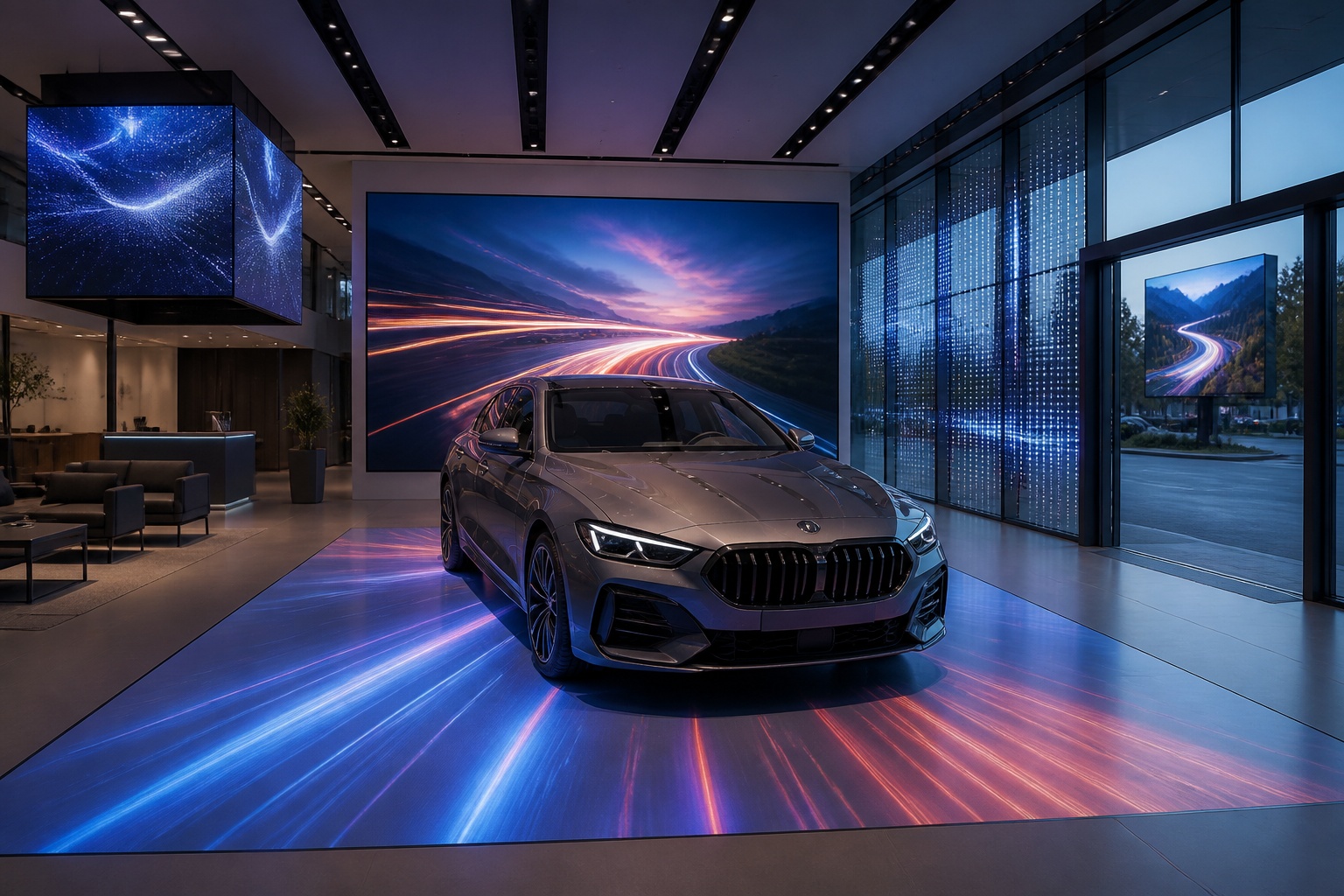
A B2B technical guide to selecting and combining fixed, floor, transparent, cube and other LED displays for automotive dealerships and 4S showrooms.
What LED Displays Can a 4S Dealership Use and How Should They Be Combined?
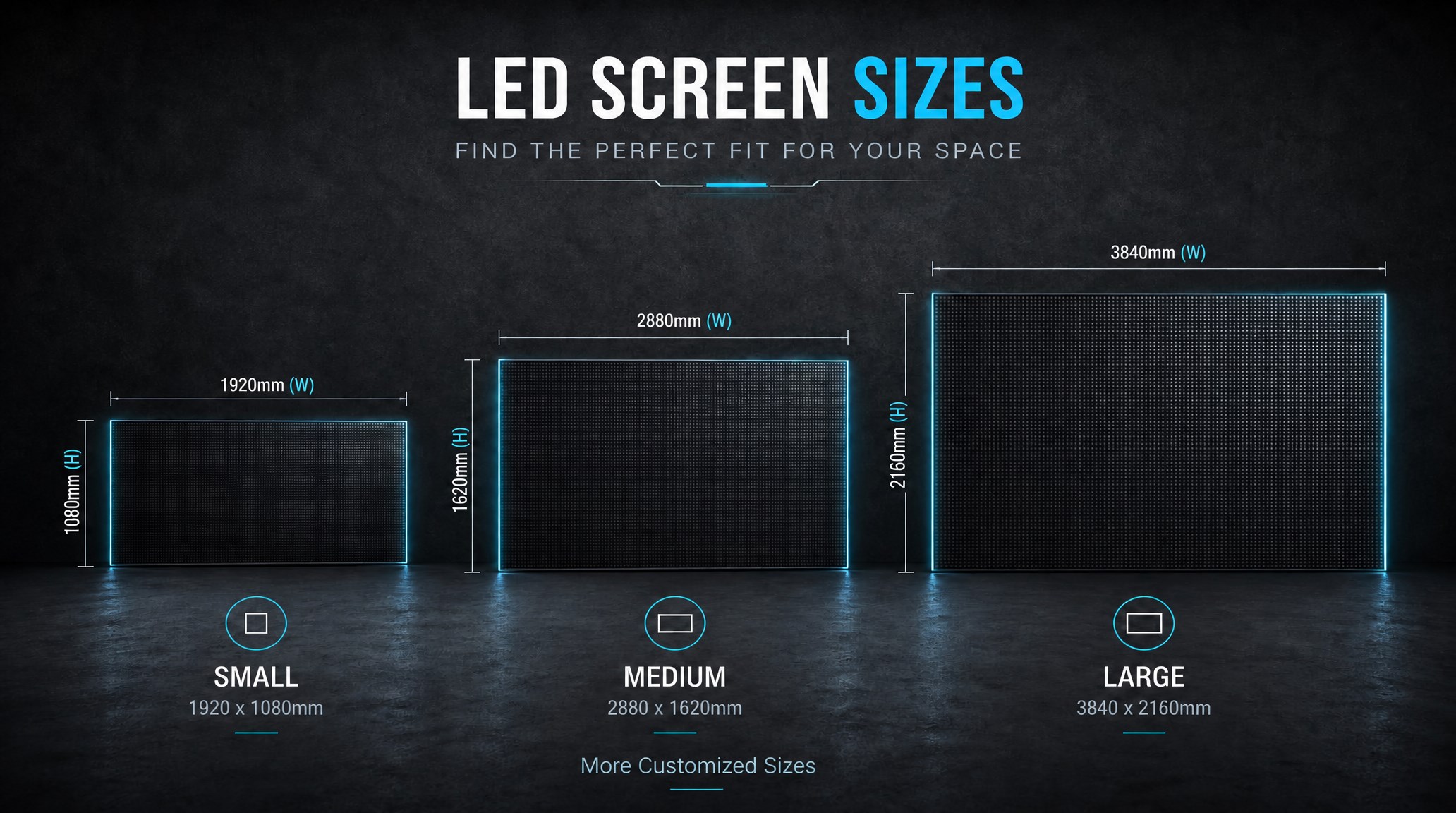
A practical guide explaining how to calculate LED display size, select pixel pitch, determine viewing distance, and choose suitable LED wall dimensions for commercial projects.
How to Choose the Right LED Display Size? Complete LED Screen Size Guide
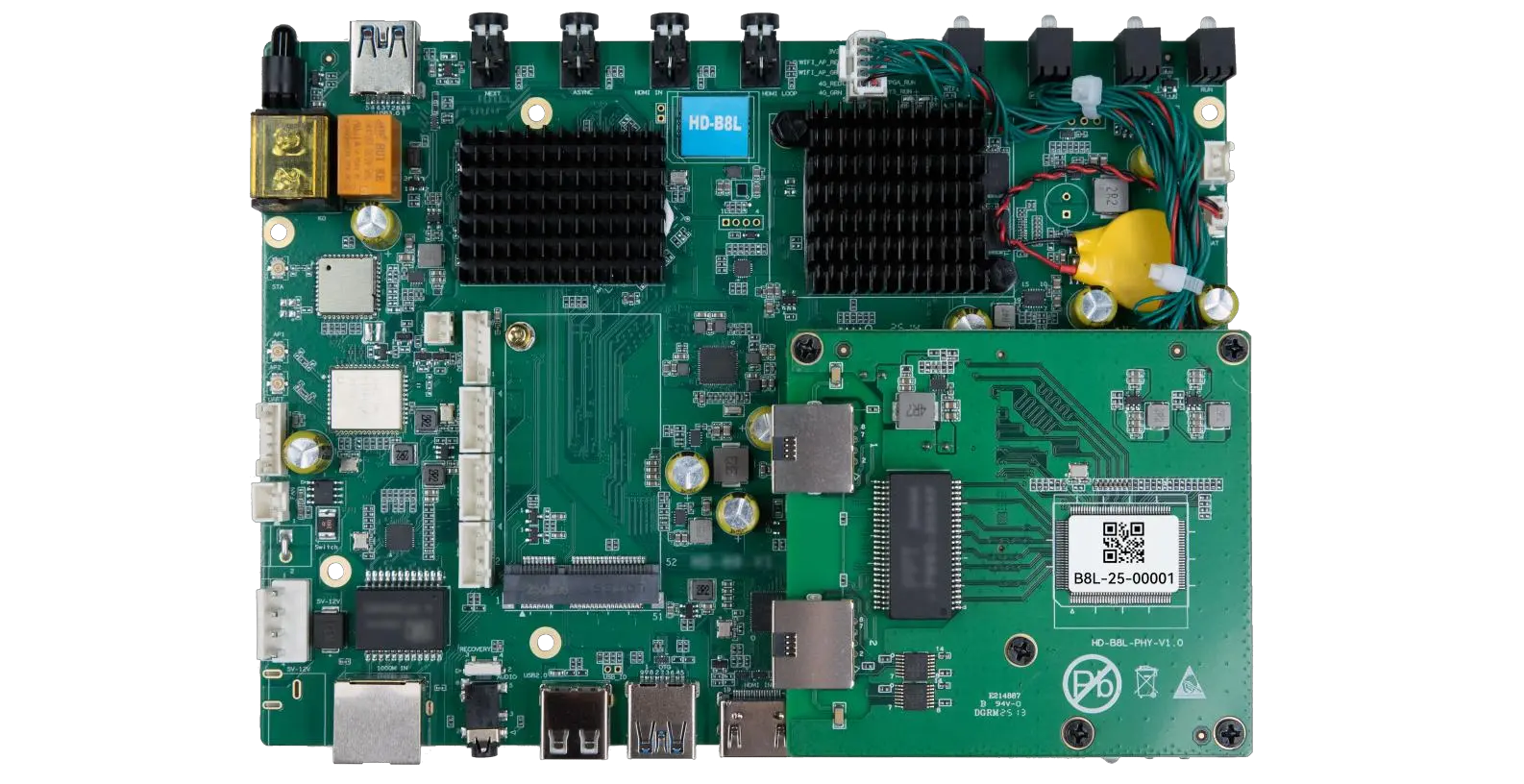
The HD-B8L Poster Screen Control System is an Android-based LED display controller designed for commercial LED poster displays and digital signage. It integrates media playback, asynchronous LED control, HDMI synchronization, network communication, and cloud management into one device, simplifying installation and centralized content management.
What Is the HD-B8L Poster Screen Control System? A Complete Technical Guide for Commercial LED Displays
Tell Us What Are You Looking For?