
How to log in NovaLCT software?
2025-05-02
How to log in NovaLCT software?
- Open NovaLCT. If the software is not the latest version, a 'LCT Online Upgrade' dialog box will automatically pop up, and you can click 'Update' to upgrade.
- Select 'Login > Media Player Login' from the menu bar.
- In the 'Terminal List' dialog box, click 'Refresh'.
- Select a multimedia player in the list and click "Connect System".
If NovaLCT and end point are not in the same network segment and can ping each other, please click "Refresh" on the right, select "Specify IP", enter the IP address and click "Search".
- Enter your username and password and click "OK".
For example, when logging in to the Taurus series of multimedia players, the username is "admin" and the default password is "123456". After successful login, the main window displays the number of multimedia players and monitoring information.
A Guide to Adjusting Brightness of LED Video Wall with Novastar Controller
How do you download the control software for an LED display?
Related Article

A B2B technical guide to selecting and combining fixed, floor, transparent, cube and other LED displays for automotive dealerships and 4S showrooms.
What LED Displays Can a 4S Dealership Use and How Should They Be Combined?
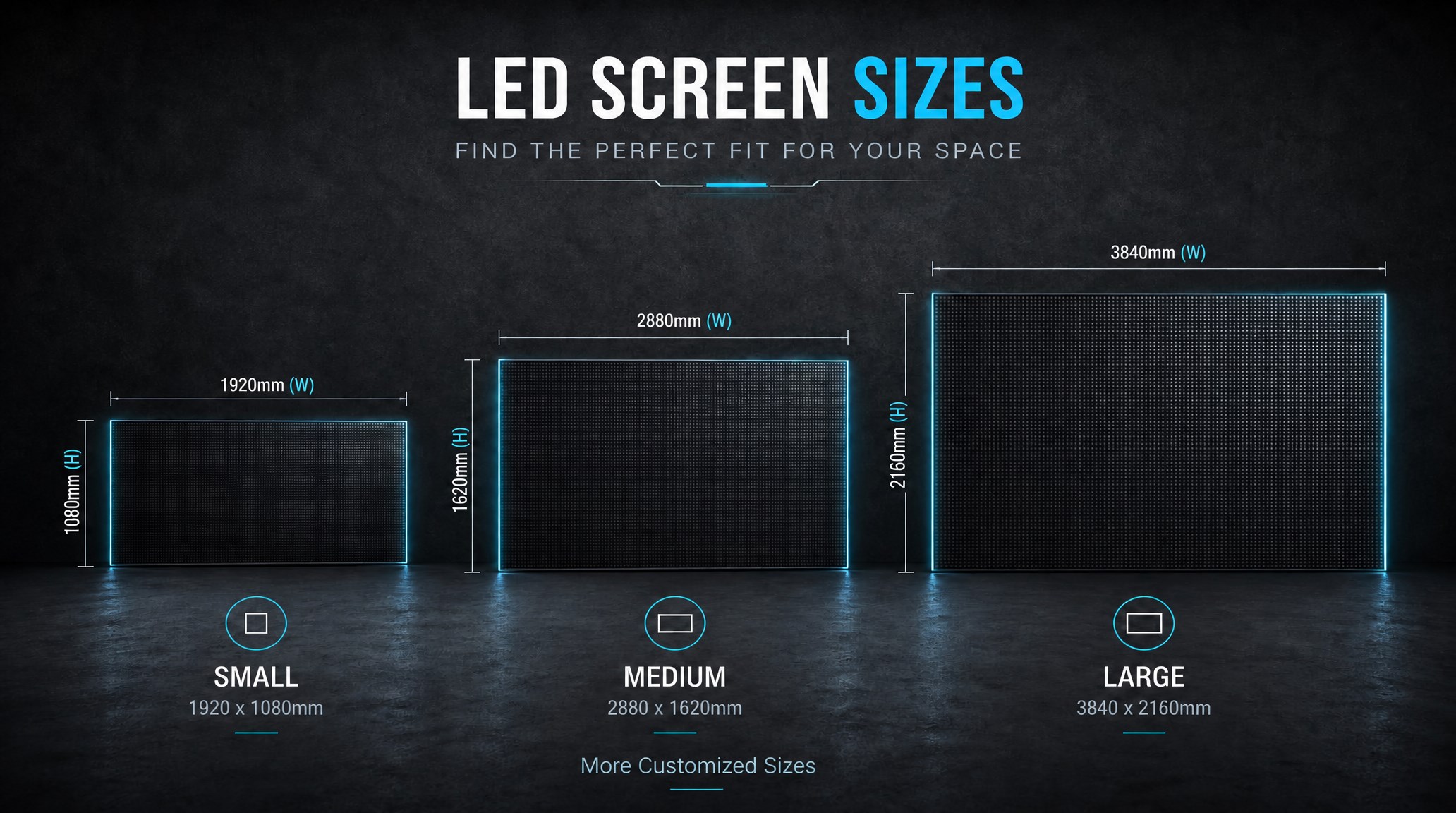
A practical guide explaining how to calculate LED display size, select pixel pitch, determine viewing distance, and choose suitable LED wall dimensions for commercial projects.
How to Choose the Right LED Display Size? Complete LED Screen Size Guide
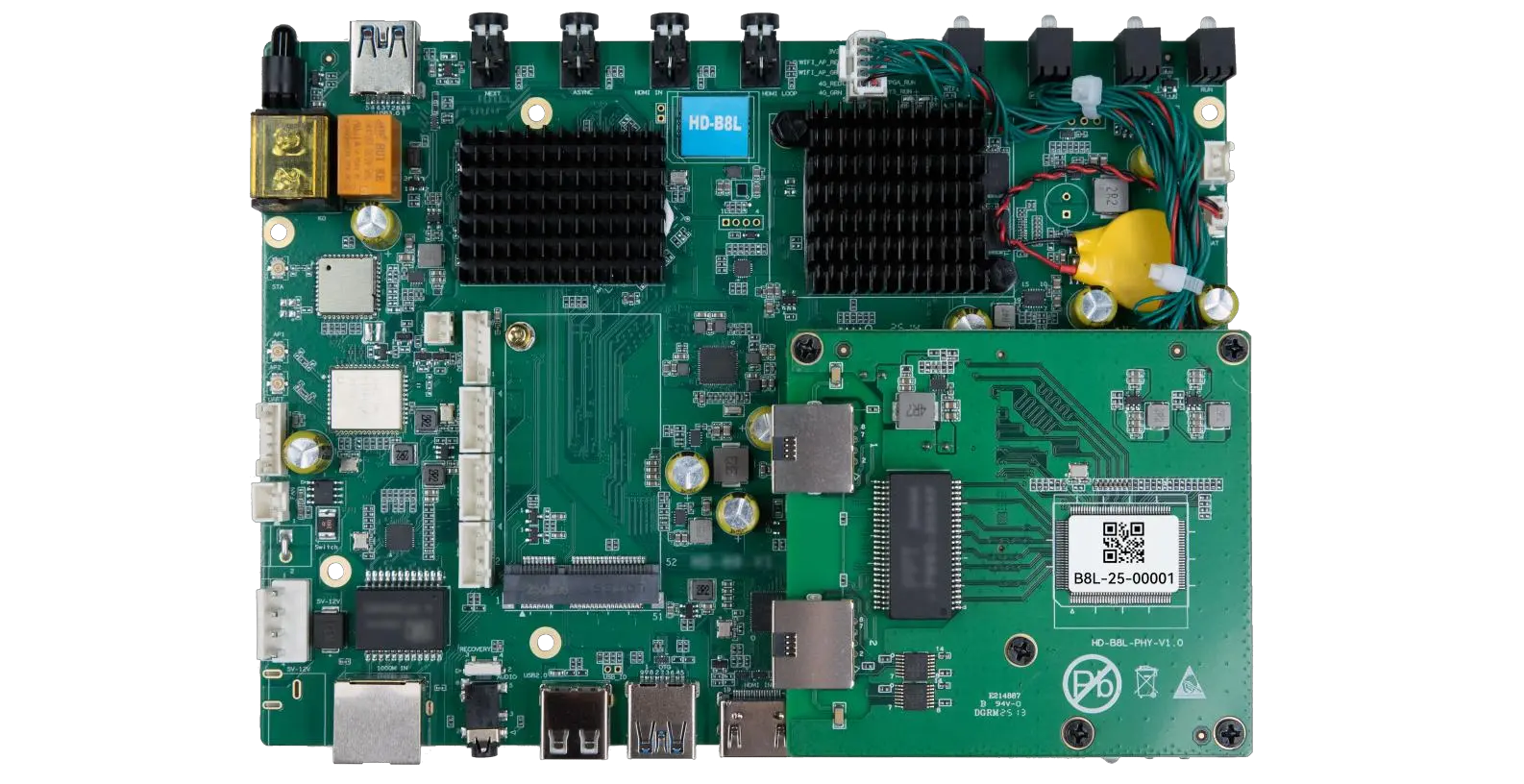
The HD-B8L Poster Screen Control System is an Android-based LED display controller designed for commercial LED poster displays and digital signage. It integrates media playback, asynchronous LED control, HDMI synchronization, network communication, and cloud management into one device, simplifying installation and centralized content management.
What Is the HD-B8L Poster Screen Control System? A Complete Technical Guide for Commercial LED Displays
Tell Us What Are You Looking For?