Huidu Banner Screen Special LED Display Not Working No Picture? Troubleshooting Guide
2025-08-26
Huidu Banner Screen Special LED Display Not Working No Picture? Troubleshooting Guide
If you own a Huidu banner screen special LED display and suddenly face the issue of it not working no picture, you’re not alone. LED displays like Huidu models are reliable for advertising, events, and business promotions, but technical glitches—from power issues to hardware faults—can disrupt their performance. This guide breaks down the most common causes of a Huidu banner screen special LED display not working no picture, step-by-step troubleshooting methods, and tips to prevent future problems. Whether you’re a business owner managing a storefront banner or a technician handling event displays, this high-value content will help you resolve LED screen problem quickly.
Common Causes of Huidu Banner Screen Special LED Display Not Working No Picture
Before diving into fixes, it’s critical to identify why your Huidu banner screen special LED display has no picture. Most issues fall into four categories, and understanding them saves time and avoids unnecessary repairs:
1. Power Supply Failures (The Most Likely Culprit)
LED displays rely on stable power to function, and a faulty power connection is the top reason for LED display problem. For Huidu banner screens, check:
- Loose power cords: The main power cable connecting the display to the outlet or power strip may be unplugged or loose—this is a simple fix but often overlooked.
- Damaged power adapters: Huidu models use dedicated adapters; if the adapter’s LED light (if equipped) isn’t on, it may be burnt out or faulty.
- Tripped circuit breakers: If the display is connected to a shared circuit, a power surge could trip the breaker, cutting power to the screen.
2. Signal Transmission Issues
Even with power, a broken signal will leave your Huidu banner screen special LED display not working no picture. Signal problems often stem from:
- Faulty data cables: The HDMI, DVI, or Ethernet cables linking the display to a controller (like a PC or media player) may be damaged or not fully inserted. Huidu banner screens often use specific data cables—using non-compatible ones can cause signal loss.
- Controller malfunctions: If the media controller (e.g., a Huidu-specific controller or external PC) is frozen or turned off, the display won’t receive content, leading to a blank screen.
- Incorrect input settings: Accidentally switching the display’s input source (e.g., from “HDMI 1” to “VGA”) can make it seem like the screen is broken, even if the signal is working.
3. Hardware Defects in the Huidu LED Display
Sometimes, the Huidu banner screen special LED display not working no picture is due to internal hardware issues. Common faults include:
- Dead LED modules: Individual LED modules (the small panels that make up the banner screen) can burn out from overuse or moisture damage. A single dead module may cause a dark spot, but multiple dead modules will result in a completely blank screen.
- Faulty driver boards: Driver boards regulate power and signal to LED modules. If a driver board fails, the connected modules won’t light up—this is a common LED monitor problems in older or heavily used displays.
- Damaged power boards: The internal power board distributes electricity to components; a short circuit here will cut power to the entire screen, even if the external power is working.
4. Software or Firmware Glitches
While less common, software issues can also cause a Huidu banner screen special LED display not working no picture:
- Outdated firmware: Huidu releases firmware updates to fix bugs and improve performance. Running old firmware may cause compatibility issues with controllers, leading to blank screens.
- Corrupted content files: If the display is set to play pre-loaded content (e.g., ads), a corrupted file can freeze the system and prevent the picture from loading.
- Misconfigured display settings: Accidentally changing brightness, contrast, or resolution settings to extreme values (e.g., “0 brightness”) can make the screen appear blank, even though it’s on.
Step-by-Step Troubleshooting for Huidu Banner Screen No Picture Issue
Follow these steps to diagnose and fix your Huidu banner screen special LED display not working no picture—start with the simplest solutions first to avoid unnecessary work:
Step 1: Verify Power Connections
- Check the main power cord: Ensure it’s fully plugged into both the display and a working outlet. Try a different outlet to rule out a faulty power source.
- Inspect the power adapter (if applicable): For Huidu banner screens that use an adapter, check if the adapter’s LED indicator is on. If not, replace the adapter with a Huidu-compatible one (using non-original adapters can cause further damage).
- Reset the circuit breaker: Locate the circuit breaker for the display’s outlet and flip it off, then on again. This fixes power surges that may have tripped the breaker.
Step 2: Test Signal Transmission
- Check data cables: Unplug and reinsert HDMI/DVI/Ethernet cables at both ends. Look for bent pins, frayed wires, or damage—replace any faulty cables with Huidu-recommended ones.
- Restart the controller: Turn off the media controller (PC, Huidu controller) for 30 seconds, then turn it back on. This resolves freezes that block signal transmission.
- Confirm input settings: Use the display’s remote or physical buttons to cycle through input sources (e.g., HDMI 1, USB, Ethernet) and select the correct one for your content.
Step 3: Inspect Hardware Components
- Check LED modules: Turn on the display and look for dark spots or unlit areas. If individual modules are dead, mark their positions—you may need to replace them (contact Huidu support for genuine parts).
- Examine driver and power boards: For advanced users, open the display’s back panel (only if you have technical experience) and check for burnt components (e.g., blackened chips) on driver or power boards. If found, replace the faulty board.
- Test with a spare display: If possible, connect your controller to a spare LED display to see if the picture works. This confirms whether the issue is with the Huidu screen or the controller.
Step 4: Fix Software and Firmware Issues
- Update Huidu firmware: Visit Huidu’s official website, download the latest firmware for your banner screen model, and follow the installation guide (never turn off the display during updates—this can corrupt the system).
- Replace corrupted content: Delete and re-upload content files to the display’s storage (or controller). Use compatible file formats (e.g., MP4, JPG) as specified in Huidu’s user manual.
- Reset display settings: Use the “Factory Reset” option in the display’s menu to restore default settings (brightness, contrast, resolution). This fixes issues caused by misconfigured settings.
When to Contact Huidu Support for LED Display Problem
If you’ve tried all troubleshooting steps and your Huidu banner screen special LED display not working no picture persists, it’s time to reach out to Huidu’s official support. Here’s when professional help is needed:
- Internal hardware damage: If you spot burnt boards, water damage, or broken LED modules (and you’re not trained to replace them), attempting repairs can worsen the issue.
- Firmware update failures: If the display freezes during a firmware update, it may need professional reflashing to avoid permanent damage.
- Warranty coverage: Huidu offers warranties for most banner screens—if your device is under warranty, support can replace faulty parts for free (save your purchase receipt and model number).
When contacting support, provide:
- The display’s model number (found on the back panel or user manual).
- A detailed description of the issue (e.g., “Screen went blank after a power outage”).
- The steps you’ve already tried (this speeds up the troubleshooting process).
How to Prevent Future Huidu Banner Screen LED Display Problems
Avoid recurring LED screen problem with these proactive tips tailored to Huidu banner screens:
- Use Huidu-genuine parts: Always replace power adapters, cables, or modules with Huidu-approved components—generic parts can cause compatibility issues and damage the display.
- Schedule regular maintenance: Every 3–6 months, clean the display’s surface (use a soft, dry cloth) and check for loose connections or signs of wear (e.g., frayed cables).
- Protect from environmental damage: For outdoor Huidu banner screens, install weatherproof enclosures to prevent moisture or dust from entering. Avoid placing indoor models near heat sources (e.g., heaters) or direct sunlight.
- Update firmware regularly: Set a reminder to check Huidu’s website for firmware updates—these often fix bugs that cause blank screens or performance issues.
- Use surge protectors: Connect the display to a high-quality surge protector to shield it from power spikes, a common cause of LED tv problems and LED display failures.
Conclusion
A Huidu banner screen special LED display not working no picture is frustrating, but most issues are fixable with simple troubleshooting. Start with power and signal checks—these resolve 60% of problems—then move to hardware and software fixes if needed. Remember, using Huidu-genuine parts and regular maintenance prevent future LED display problem, saving you time and money.
If you’re still stuck, Huidu’s support team is equipped to handle complex issues, especially for under-warranty devices. By following the steps in this guide, you’ll get your Huidu banner screen back up and running quickly, ensuring your advertising or promotional content reaches your audience without interruption. Don’t let a blank screen derail your goals—use this troubleshooting resource to resolve LED monitor problems and keep your display performing at its best.
Why Can't LED Show True Black? A Complete Guide to True Black Screens
LED Display Pixel Pitch: Unraveling the Key to Stunning Visuals
Related Article
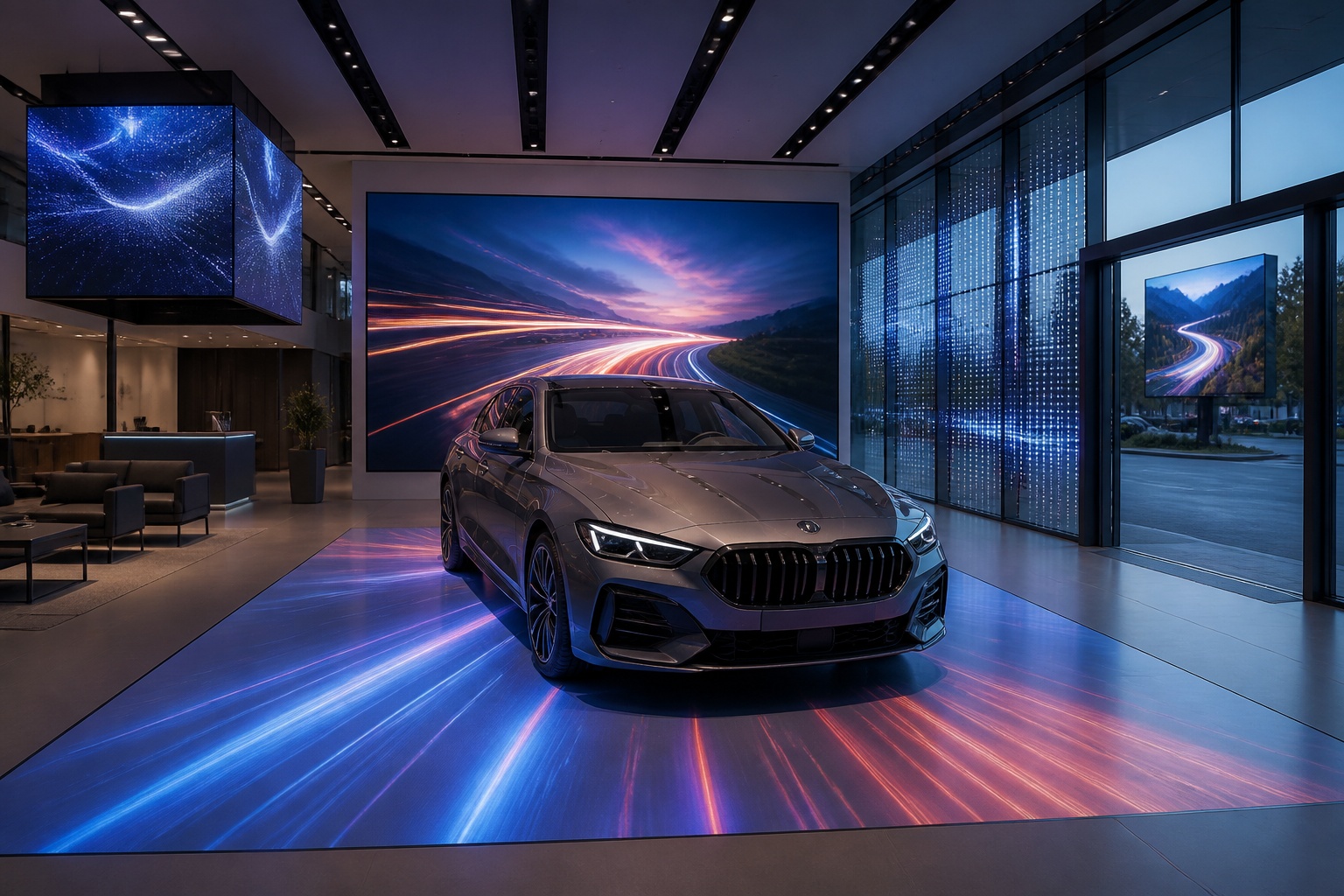
A B2B technical guide to selecting and combining fixed, floor, transparent, cube and other LED displays for automotive dealerships and 4S showrooms.
What LED Displays Can a 4S Dealership Use and How Should They Be Combined?
A practical guide explaining how to calculate LED display size, select pixel pitch, determine viewing distance, and choose suitable LED wall dimensions for commercial projects.
How to Choose the Right LED Display Size? Complete LED Screen Size Guide
The HD-B8L Poster Screen Control System is an Android-based LED display controller designed for commercial LED poster displays and digital signage. It integrates media playback, asynchronous LED control, HDMI synchronization, network communication, and cloud management into one device, simplifying installation and centralized content management.
What Is the HD-B8L Poster Screen Control System? A Complete Technical Guide for Commercial LED Displays
Tell Us What Are You Looking For?